
Start from something you already made. Regenerate prepares another version from the same setup; Use in Pipe carries useful media and settings into a Pipe you choose.
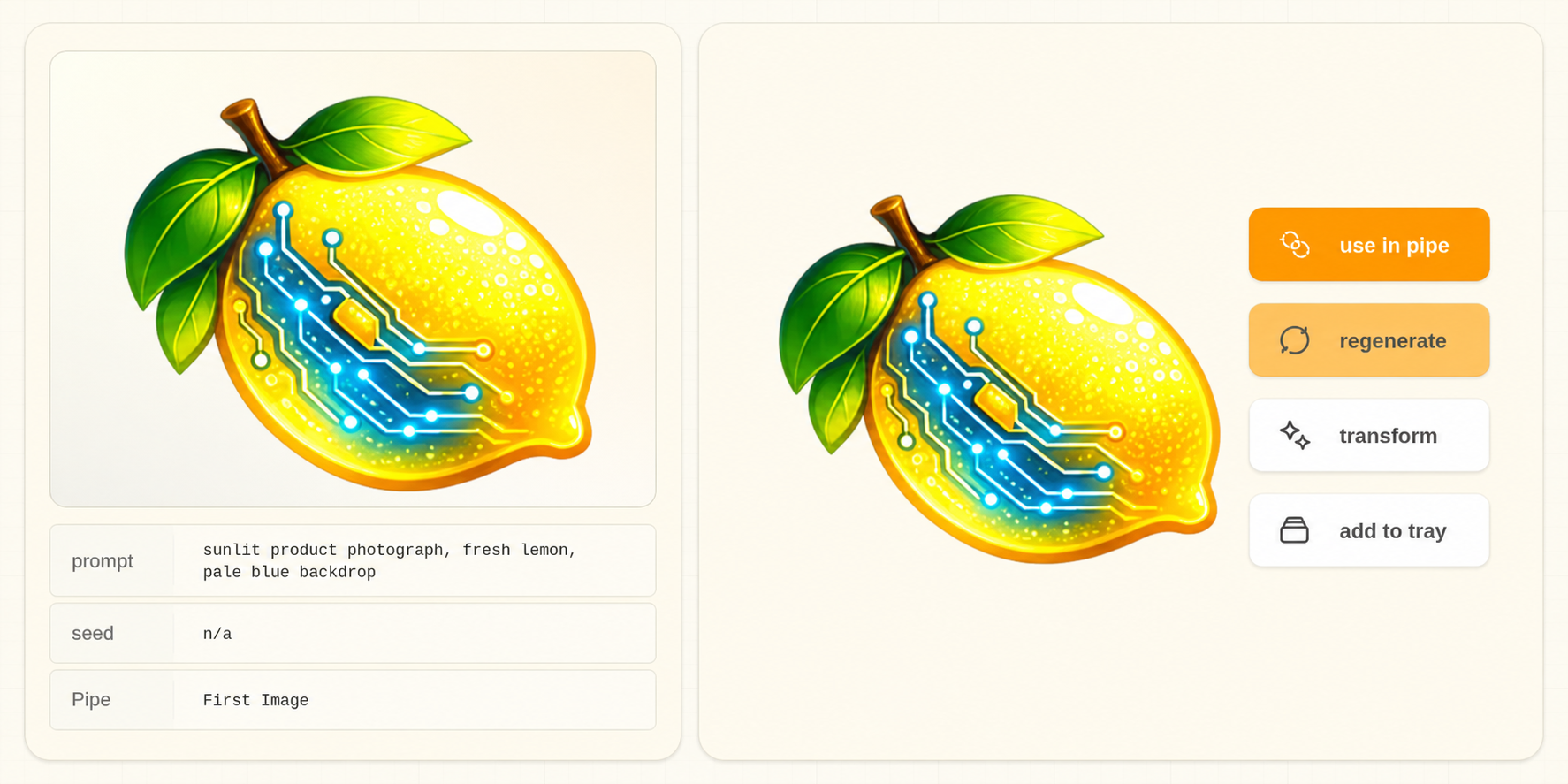
Regenerate #
Use Regenerate when you want another version made from the same saved setup.
- Open the image or clip in Image Viewer.
- Choose Regenerate.
- Review the Pipe, prompt, source media, and controls that Studio restored.
- Confirm the project and save folder.
- Change what you want to explore.
- Generate.
The original image or clip stays where it is.
Studio links the image to its Pipe using portable identity and recorded workflow evidence. Importing a Pipe from an image also links other images made with that Pipe, including images discovered in added storage directories. Regenerate can import a missing recorded Pipe automatically.
Restoration keeps your current labels and layout while restoring the image's execution values, including hidden controls, inputs, each seed and bypass state. The same seed and full setup should reproduce the same image with the same model files and execution environment; some backends remain nondeterministic. The explicit random-seed action starts a variation instead.
If the Pipe match is ambiguous or required historical values are missing, Studio explains the problem rather than choosing another Pipe or substituting current defaults. For large JPEG workflows, keep the accompanying JSON sidecar with the image when moving it between directories or computers.
Use in Pipe #
Use Use in Pipe when you want to carry compatible media or saved values into another Pipe.
- Open the image or clip you want to reuse.
- Choose Use in Pipe.
- Select the Pipe you want to use when Studio asks.
- Review the prompt, controls, and media Studio filled in.
- Fill any required field that is still empty.
- Generate.
Choose the right action #
| What you want to do | Action |
|---|---|
| Make another version from the same setup | Regenerate |
| Carry the image, clip, or compatible settings into another workflow | Use in Pipe |
| Drag only the media into an input | Media Tray |
| Reopen a workspace you arranged and saved | Canvas |