
Prompt Studio is where you choose a Pipe, write the prompt, add source images, and make the next image or clip.
Connect ComfyUI and select a project. A starter Pipe is enough for a first tour.
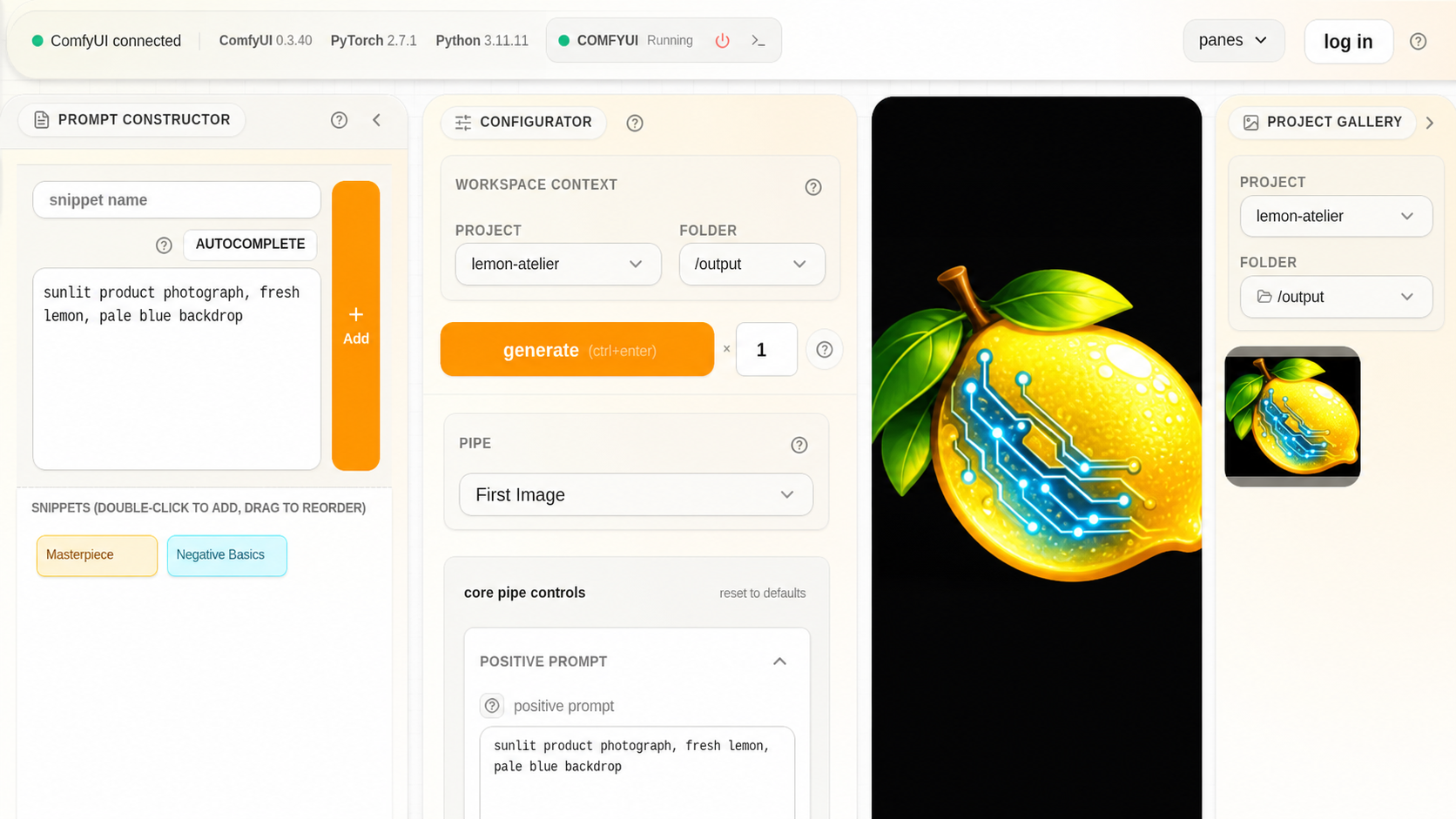
The work stays central while the prompt, Pipe, save folder, and nearby Gallery remain easy to reach.
Make something #
Prompt Studio keeps the active Pipe, prompt tools, project and folder, image or video viewer, and nearby Gallery together. Generation Feed appears while work is queued or running.
- Choose the project, output folder, and Pipe in Workspace Context.
- Write directly in a prompt field or assemble blocks in Prompt Constructor.
- Set the Pipe’s Core controls, then open Expanded when you need more detail.
- Add source images or clips through a compatible field or Media Tray.
- Make one image or clip.
- Review it in the viewer or Gallery.
- Save a Canvas when the working setup is worth resuming.
When you change the project, folder, or Pipe #
Changing the project changes which body of work receives the next file. Changing the folder changes exactly where it is saved. Changing the Pipe replaces the controls with those built for the newly selected workflow.
Choose the right reuse action #
| Goal | Action |
|---|---|
| Resume the visible workspace later | Save a Canvas |
| Start from a prior image or clip’s compatible values | Use in Pipe |
| Make another version with the same saved setup | Regenerate |
| Feed an image or clip into another control | Add it to Media Tray and drag it |